Set up the source environment (mock on-premises data center)
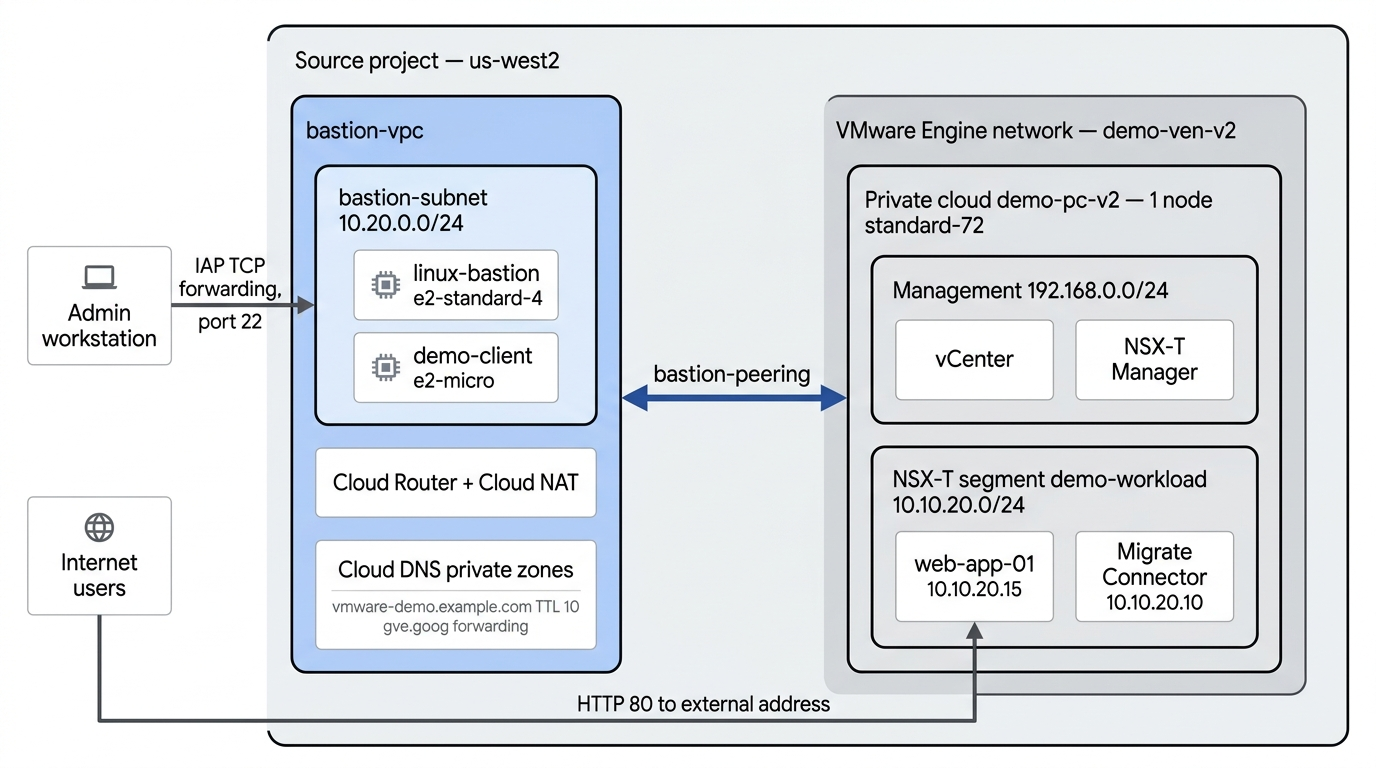
Deploy a single-node
Google Cloud VMware Engine (GCVE)
private cloud to create a mock on-premises data center. This environment
includes a VMware NSX-T overlay network, a Linux jump host for management
access, a continuous DNS watcher client (demo-client), private Cloud DNS, and
a sample NGINX workload (web-app-01).
Architecture
Terraform deploys the following infrastructure in the source project. The migration guide adds the Migrate Connector to the workload segment later:
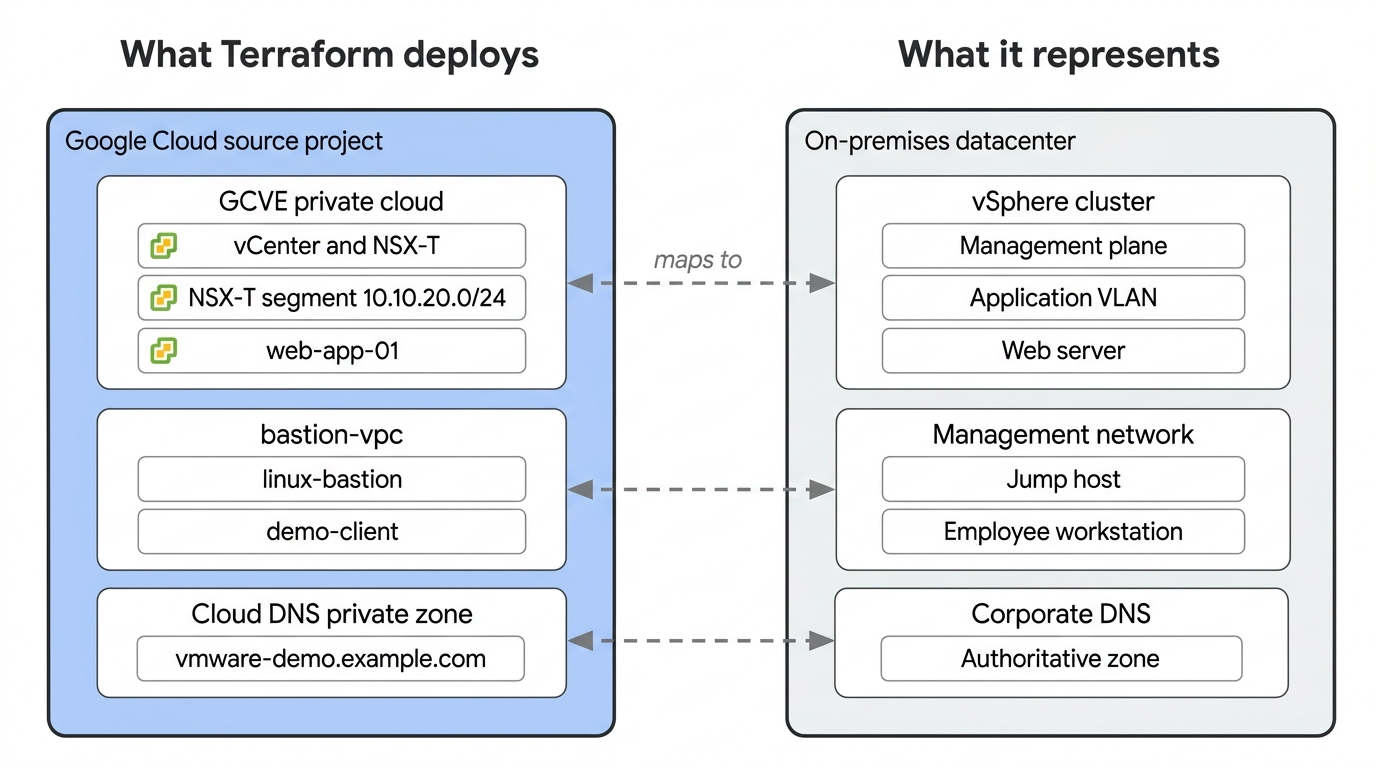
This environment stands in for a traditional on-premises data center. The migration guide refers to the components by their on-premises names, so use the following mapping to translate between them:
Prerequisites and requirements
Before provisioning the source environment, verify that you have the following:
- Google Cloud project (
SOURCE_PROJECT_ID): A dedicated project with billing enabled. - Google Cloud VMware Engine quota: Minimum quota for 1 node of type
standard-72in your target zone, such asus-west2-a. - Google Cloud CLI (gcloud): Configured and authenticated on your local workstation.
- Terraform: Version 1.15.5 or later installed.
Permissions
Ensure your account has the following Identity and Access Management (IAM) roles
in SOURCE_PROJECT_ID:
roles/vmwareengine.adminroles/compute.adminroles/dns.adminroles/serviceusage.serviceUsageAdminroles/resourcemanager.projectIamAdminroles/iam.roleAdmin(Terraform creates a custom role that lets the bastion read vCenter and NSX-T credentials)roles/orgpolicy.policyAdminroles/compute.osLoginExternalUser(Required when authenticating from an external organization or domain)
Provision the source infrastructure
Enable the required Google Cloud APIs and deploy the GCVE private cloud, Virtual Private Cloud (VPC) network, jump host, and demo client using Terraform.
Set up the environment
-
Clone the repository with sparse checkout and navigate to the project root directory:
git clone --filter=blob:none --no-checkout https://github.com/GoogleCloudPlatform/cloud-solutions.git
cd cloud-solutions
git sparse-checkout set --cone projects/migrate-vmware-to-gce
git checkout
cd projects/migrate-vmware-to-gce
If you already cloned the repository, navigate to the project directory:
-
Authenticate the Google Cloud CLI and set up Application Default Credentials (ADC) for Terraform:
-
Set the environment variables for your source and target projects:
-
Write the variables to
env.sh, load them into your shell session, and configure the defaultgcloudproject:{ echo "export SOURCE_PROJECT_ID=\"${SOURCE_PROJECT_ID}\"" echo "export TARGET_PROJECT_ID=\"${TARGET_PROJECT_ID}\"" echo "export REGION=\"${REGION}\"" echo "export ZONE=\"${ZONE}\"" } > env.sh source env.sh gcloud config set project ${SOURCE_PROJECT_ID}Run
source env.shin any additional terminal window that you open while following this guide to load the environment variables into your shell session. -
Enable the required Google Cloud services in your source project:
Deploy the private cloud and networking
Deploy the base VMware Engine infrastructure, bastion VPC, and Cloud DNS policies:
-
Apply the configuration:
terraform -chdir=source/infra init
terraform -chdir=source/infra apply \
  -var="source_project_id=${SOURCE_PROJECT_ID}" \
  -var="region=${REGION}" \
  -var="zone=${ZONE}" \
  -auto-approve
Provisioning a single-node
TIME_LIMITEDGCVE private cloud typically takes between 2 and 3 hours.
Provision the sample workload
Deploy the NSX-T overlay segment, publish an Ubuntu cloud image to the vCenter
Content Library, and clone web-app-01.
Warning
Applying this configuration stores vCenter and NSX-T administrative
credentials in plain text in terraform.tfstate. Treat the state file as
sensitive data, do not commit it to version control, and delete local state
copies when you decommission the environment.
Deploy from linux-bastion, which connects directly to private .gve.goog
endpoints through VPC peering:
-
Copy the workload configuration and infrastructure state to
linux-bastion:gcloud compute ssh linux-bastion \ --zone="${ZONE}" \ --project="${SOURCE_PROJECT_ID}" \ --tunnel-through-iap \ --command="mkdir -p ~/single-tier-workload ~/infra" gcloud compute scp source/single-tier-workload/*.tf source/single-tier-workload/.terraform.lock.hcl \ linux-bastion:~/single-tier-workload/ \ --zone="${ZONE}" \ --project="${SOURCE_PROJECT_ID}" \ --tunnel-through-iap gcloud compute scp source/infra/terraform.tfstate \ linux-bastion:~/infra/terraform.tfstate \ --zone="${ZONE}" \ --project="${SOURCE_PROJECT_ID}" \ --tunnel-through-iap -
Initialize, apply, and sync the state file back:
gcloud compute ssh linux-bastion \
  --zone="${ZONE}" \
  --project="${SOURCE_PROJECT_ID}" \
  --tunnel-through-iap \
  --command="cd ~/single-tier-workload && terraform init && terraform apply -auto-approve"

gcloud compute scp \
  linux-bastion:~/single-tier-workload/terraform.tfstate \
  source/single-tier-workload/terraform.tfstate \
  --zone="${ZONE}" \
  --project="${SOURCE_PROJECT_ID}" \
  --tunnel-through-iap
Terraform pauses after creating the NSX-T segment to allow vCenter to synchronize the new network into its inventory.
Allow 60 to 90 seconds after apply completes for cloud-init to install and configure NGINX.
-
Verify the web application responds over HTTP:
until curl -s --connect-timeout 2 "http://$(terraform -chdir=source/infra output -raw web_app_public_ip)"; do
  echo "Waiting for Nginx to respond (~60-90s for initial boot)..."
  sleep 20
done
Output:
Next steps
Proceed to the cutover migration guide to replicate and migrate the workload to Compute Engine:
Clean up the source environment
Important
If you deployed the Migrate Connector (migrate-connector-* or
m2vm-connector) in vCenter, you must power off and delete the VM in the
vSphere Client before running terraform destroy. Otherwise, NSX-T holds a
port attachment lock on the demo-workload segment and causes
terraform destroy to time out after 20 minutes.
To tear down the source environment:
-
In the vSphere Client, power off and delete the Migrate Connector VM (
migrate-connector-*orm2vm-connector). -
Destroy the workload VM, content library, and NSX-T segment on
linux-bastion:source env.sh gcloud compute ssh linux-bastion \ --zone="${ZONE}" \ --project="${SOURCE_PROJECT_ID}" \ --tunnel-through-iap \ -- "cd ~/single-tier-workload && terraform destroy -auto-approve"Wait 3 to 5 minutes for NSX-T to release distributed virtual port attachment locks before destroying the private cloud.
-
Destroy the GCVE private cloud, Linux jump host, demo client, external addresses, and networking:
Note
If Terraform reports Error 400: RESOURCE_IS_REFERENCED on an external
address due to network policy eventual consistency, re-run the
terraform destroy command to complete deletion.
When GCVE deletes a private cloud, it places the cluster into a 15-minute
soft-deleted state while wiping physical bare-metal nodes. Physical compute
billing ceases immediately ($0/hr). If Terraform reports
Error 400: RESOURCE_IS_REFERENCED when attempting to delete
google_vmwareengine_network.this during this background wipe window, you can
remove the zero-cost network metadata from local state to complete teardown
immediately:
Destroying the stack soft-deletes the gcveCredentialsReader_* custom role.
Google keeps a deleted role ID reserved for 37 days, so reusing the same
private_cloud_name before then fails with Error 409: role already exists.
Either set a new private_cloud_name, which also rotates the role ID, or
restore the previous role: