Shot Production
Create your first shot
In this section, you will produce your first shot. While you can directly convert an existing storyboard frame into a video using Veo's Image-to-Video feature, you will instead explore a more holistic, end-to-end workflow. You’ll see how to first generate a high-fidelity reference image from your source assets, filling a gap in your storyboard and then translate that static frame into a dynamic, cinematic video.
- Go to ComfyUI. Click the
Workflowsmenu on the left and selectshot_production>shot_production1.json. - It will open the workflow in ComfyUI which will look like the following image:
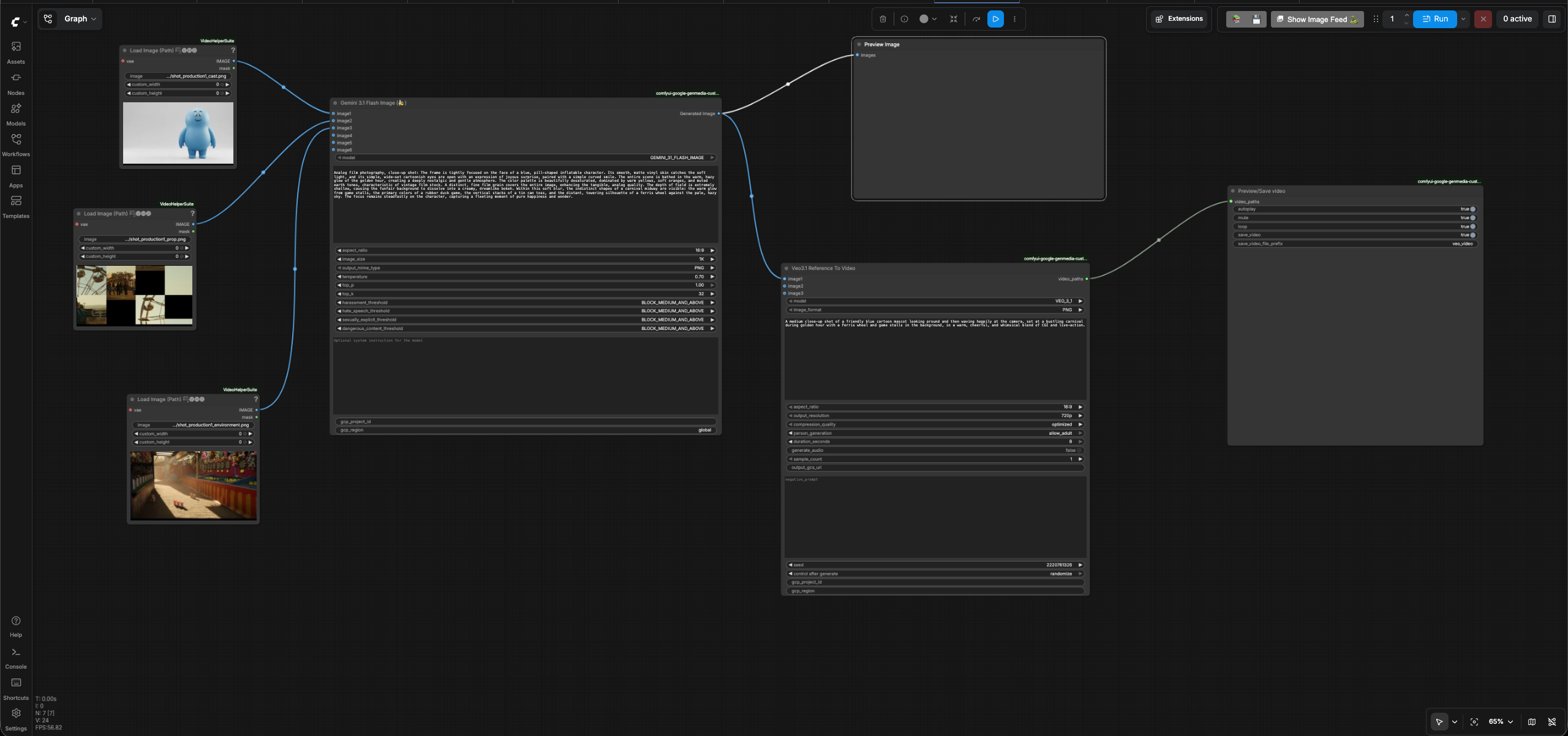
- Enter your GCP project id in the
gcp_project_idinput field of bothGemini 3.1 Flash ImageandVeo 3.1nodes. - Leave the
regioninput as "global" inGemini 3.1 Flash Image(Nano Banana) node. - Enter the region in
regioninput field of theVeo 3.1node. -
Review the text prompt in
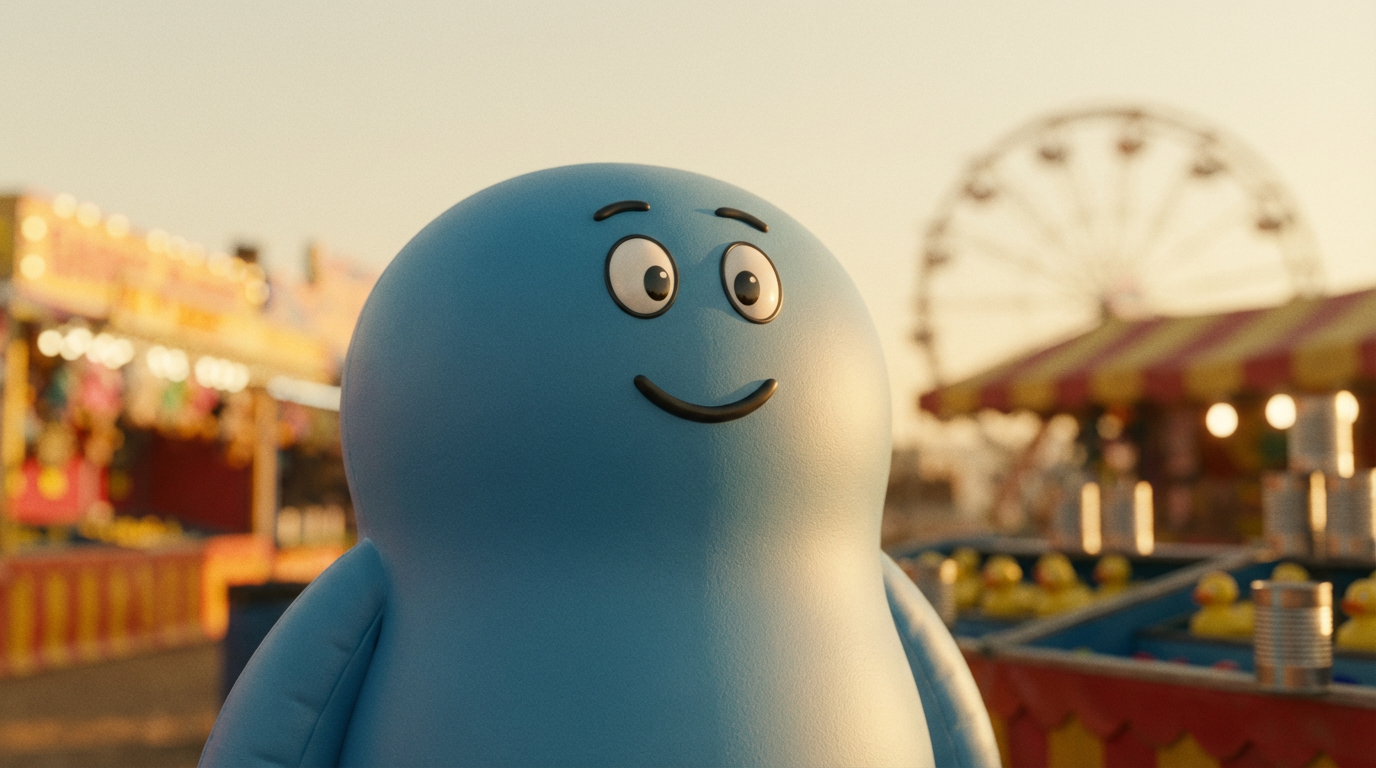
Gemini 3.1 Flash Imagenode which follows the formula [Subject] + [Action] + [Location/context] + [Composition] + [Style] based on the prompting best practices for Nano Banana.Analog film photography, close-up shot: The frame is tightly focused on the face of a blue, pill-shaped inflatable character. Its smooth, matte vinyl skin catches the soft light, and its simple, wide-set cartoonish eyes are open with an expression of joyous surprise, paired with a simple curved smile. The entire scene is bathed in the warm, hazy glow of the golden hour, creating a deeply nostalgic and gentle atmosphere. The color palette is beautifully desaturated, dominated by warm yellows, soft oranges, and muted earth tones, characteristic of vintage film stock. A distinct, fine film grain covers the entire image, enhancing the tangible, analog quality. The depth of field is extremely shallow, causing the funfair background to dissolve into a creamy, dreamlike bokeh. Within this soft blur, the indistinct shapes of a carnival midway are visible: the warm glow from game stalls, the primary colors of a rubber duck game, the vertical stacks of a tin can toss, and the distant, towering silhouette of a ferris wheel against the pale, hazy sky. The focus remains steadfastly on the character, capturing a fleeting moment of pure happiness and wonder. -
Review the text prompt in
Veo 3.1node which follows the formula [Cinematography] + [Subject] + [Action] + [Context] + [Style & Ambiance] based on the prompting best practices for Veo. -
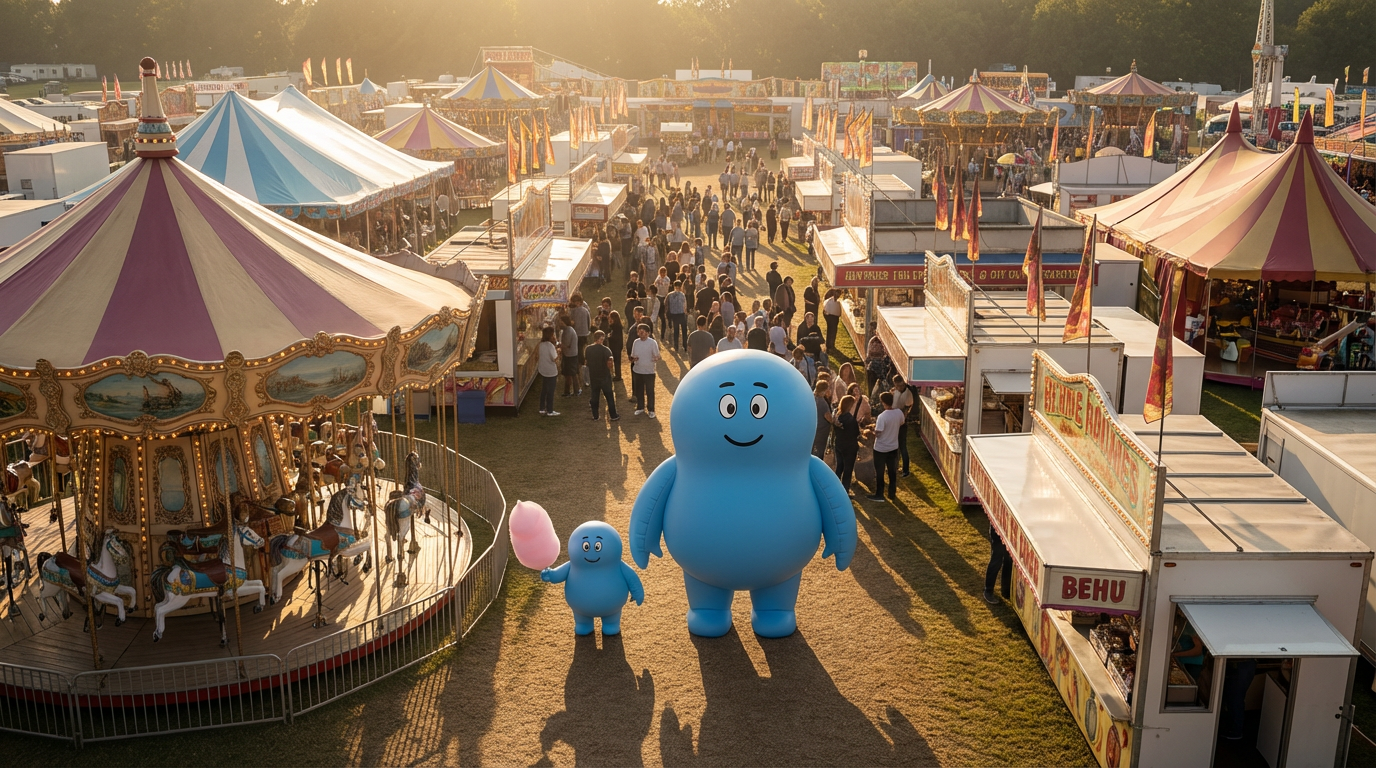
Run the workflow. You will get an image and video similar to the resulting image and resulting video.
Create another shot
- Go to ComfyUI. Click the
Workflowsmenu on the left and selectshot_production>shot_production2.json. - It will open the workflow in ComfyUI which will look like the following image:
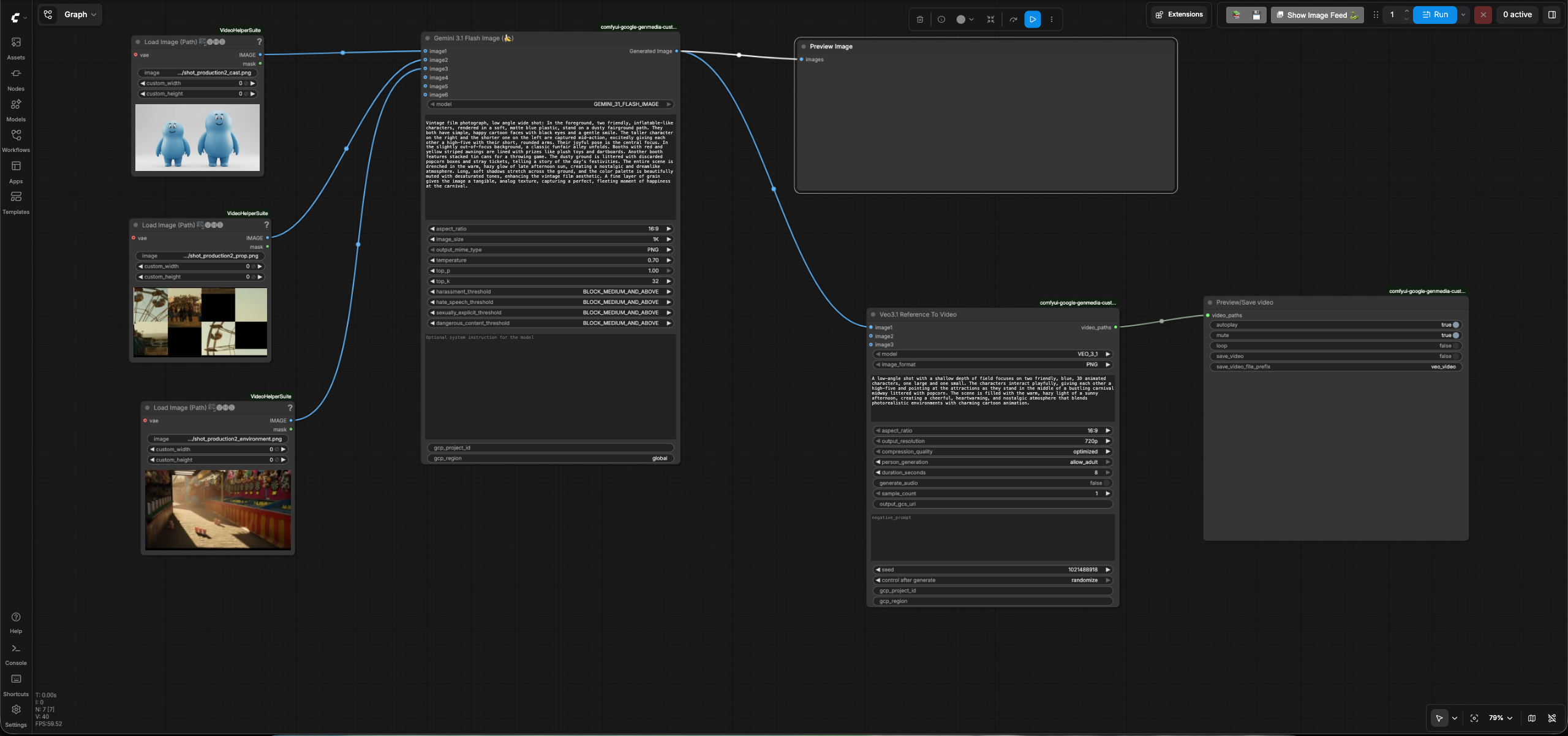
- Enter your GCP project id in the
gcp_project_idinput field of bothGemini 3.1 Flash ImageandVeo 3.1nodes. - Leave the
regioninput as "global" inGemini 3.1 Flash Image(Nano Banana) node. - Enter the region in
regioninput field of theVeo 3.1node. -
Review the text prompt in
Gemini 3.1 Flash Imagenode which follows the formula [Subject] + [Action] + [Location/context] + [Composition] + [Style] based on the prompting best practices for Nano Banana.Vintage film photograph, low angle wide shot: In the foreground, two friendly, inflatable-like characters, rendered in a soft, matte blue plastic, stand on a dusty fairground path. They both have simple, happy cartoon faces with black eyes and a gentle smile. The taller character on the right and the shorter one on the left are captured mid-action, excitedly giving each other a high-five with their short, rounded arms. Their joyful pose is the central focus. In the slightly out-of-focus background, a classic funfair alley unfolds. Booths with red and yellow striped awnings are lined with prizes like plush toys and dartboards. Another booth features stacked tin cans for a throwing game. The dusty ground is littered with discarded popcorn boxes and stray tickets, telling a story of the day's festivities. The entire scene is drenched in the warm, hazy glow of late afternoon sun, creating a nostalgic and dreamlike atmosphere. Long, soft shadows stretch across the ground, and the color palette is beautifully muted with desaturated tones, enhancing the vintage film aesthetic. A fine layer of grain gives the image a tangible, analog texture, capturing a perfect, fleeting moment of happiness at the carnival. -
Review the text prompt in
Veo 3.1node which follows the formula [Cinematography] + [Subject] + [Action] + [Context] + [Style & Ambiance] based on the prompting best practices for Veo.A low-angle shot with a shallow depth of field focuses on two friendly, blue, 3D animated characters, one large and one small. The characters interact playfully, giving each other a high-five and pointing at the attractions as they stand in the middle of a bustling carnival midway littered with popcorn. The scene is filled with the warm, hazy light of a sunny afternoon, creating a cheerful, heartwarming, and nostalgic atmosphere that blends photorealistic environments with charming cartoon animation. -
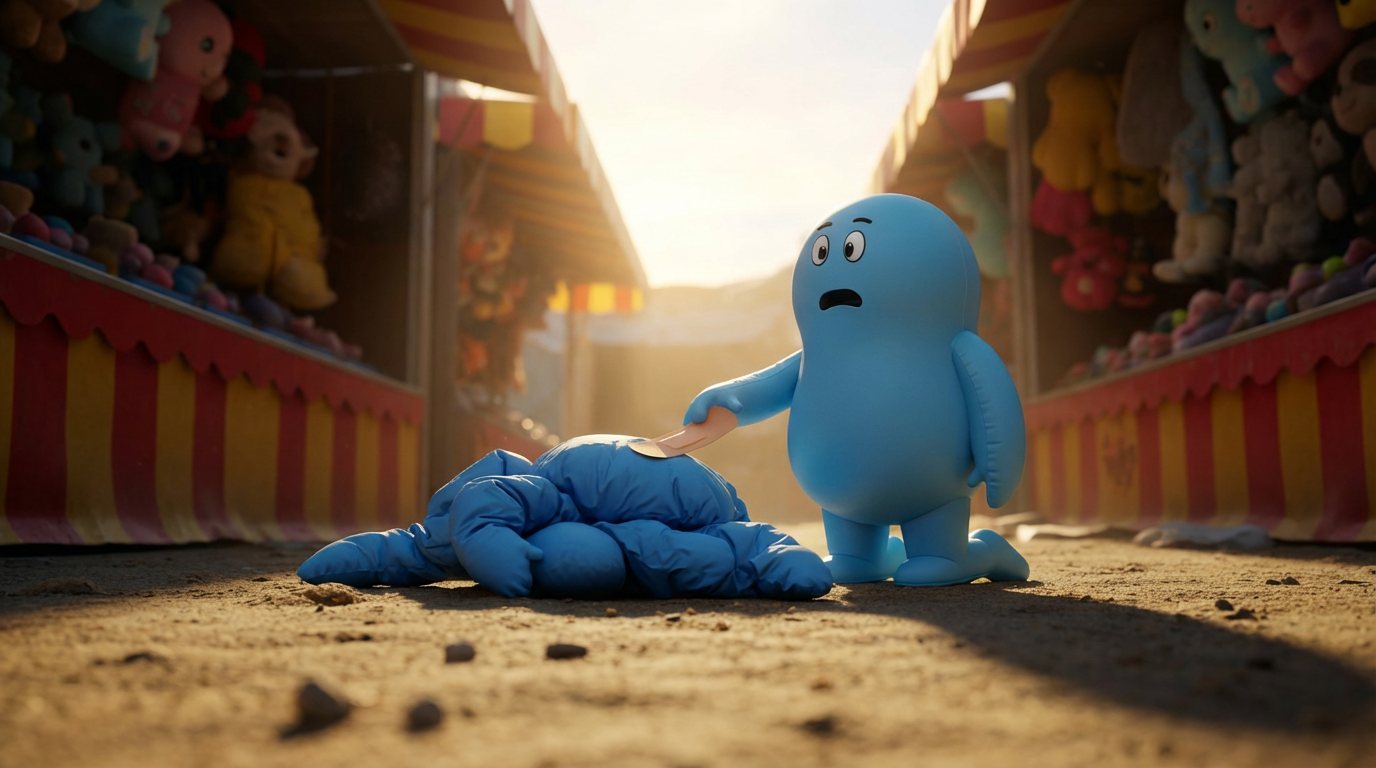
Run the workflow. You will get an image and video similar to the resulting image and resulting video.
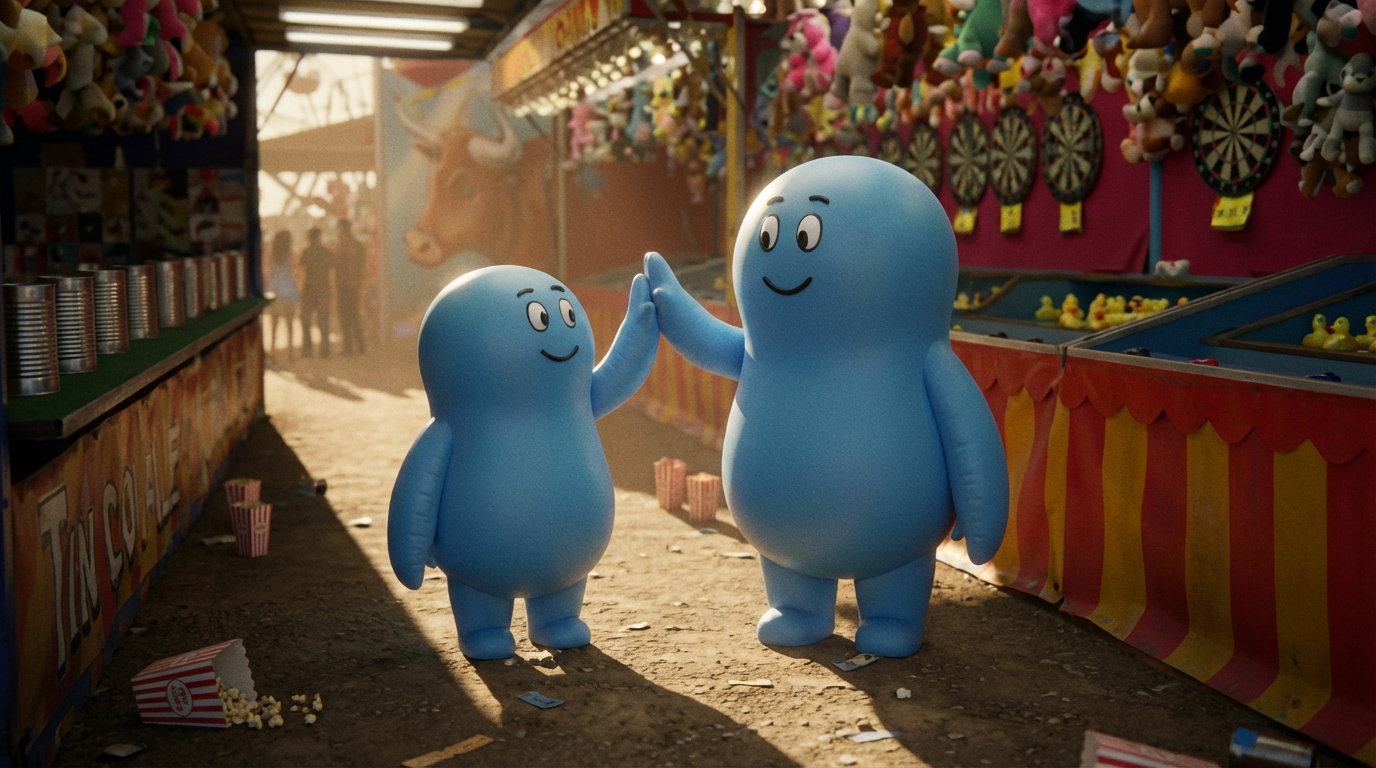
Change the camera angle of the shot
You can also change your storyboard frames to look more realistic by changing the aesthetics like camera angles, lighting etc. In this section, we will change the camera angle of a couple of shots.
- Go to ComfyUI. Click the
Workflowsmenu on the left and selectshot_prodcution>shot_production3.json. - It will open the workflow in ComfyUI which will look like the following image:
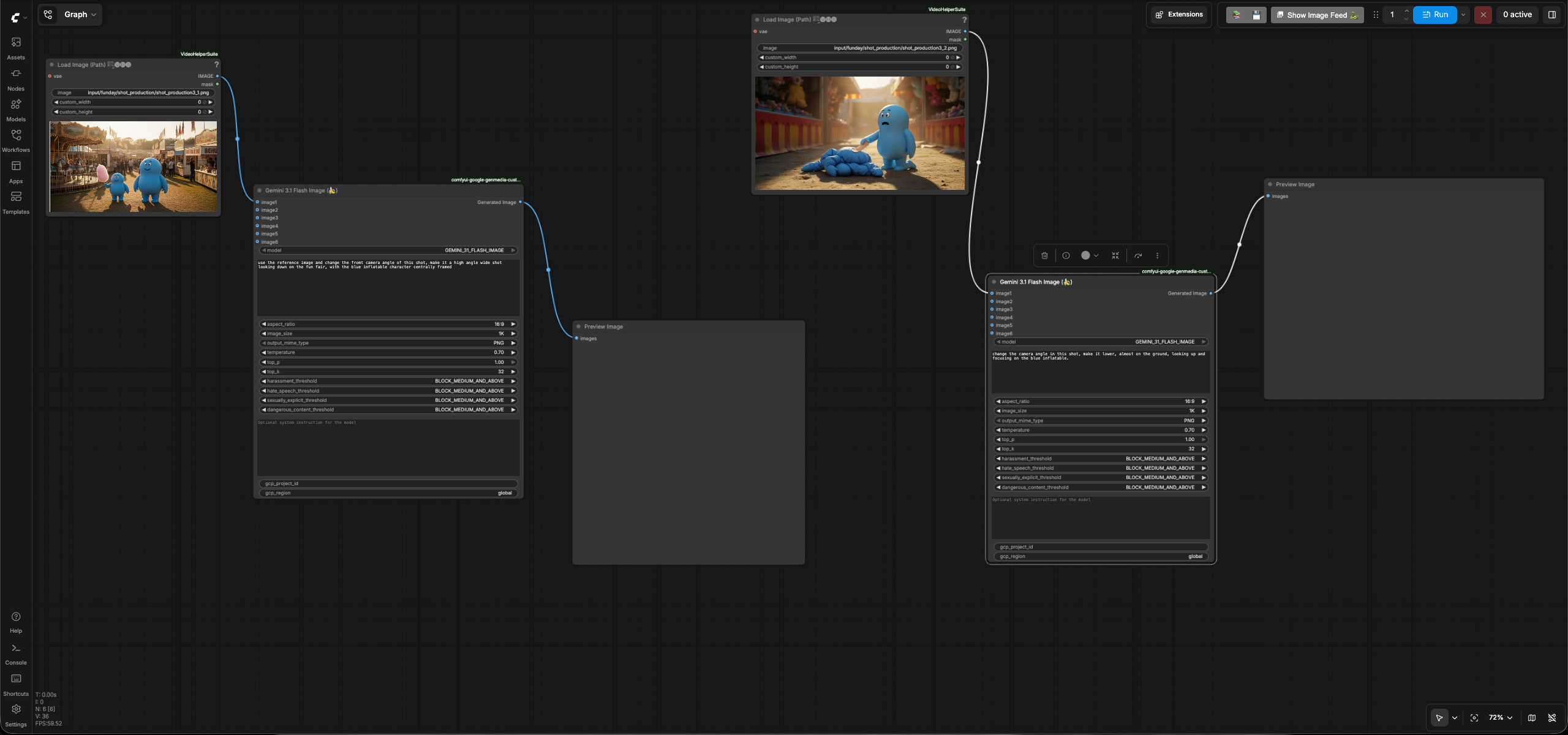
- Enter your GCP project id in the
gcp_project_idinput field of theGemini 3.1 Flash Image(Nano Banana) node and leave theregioninput as "global" -
Review the text prompt in the nodes which follows the formula [Subject] + [Action] + [Location/context] + [Composition] + [Style] based on the prompting best practices for Nano Banana.
Node1
use the reference image and change the front camera angle of this shot, make it a
high angle wide shot looking down on the fun fair, with the blue inflatable
character centrally framed
Node2
-
Run the workflow. You will get an images similar to the Node1 result and Node2 result.