MCP Servers for Genmedia x Gemini CLI
Use the MCP Servers for Genmedia with the Gemini CLI (launch announcement blog post)
 (
(To install these MCP servers, please see Installation.
To configure these servers for gemini cli, you can either add these to your ~/.gemini/settings.json (see Configuration) or create an Extension (preferred, Extensions).
Existing Users: If you have previously installed the GenMedia extension using the older JSON format, please see the Migration Guide for quick instructions on upgrading to the new interactive setup.
Authentication
Section titled “Authentication”The GenMedia MCP servers call Vertex AI from the MCP server process. Gemini CLI’s own Gemini API key or login does not authenticate these Vertex AI calls.
Before starting Gemini CLI, configure Google Cloud Application Default Credentials (ADC) and a Google Cloud project ID:
gcloud auth application-default loginexport GOOGLE_CLOUD_PROJECT="$(gcloud config get-value project)"For service accounts, set GOOGLE_APPLICATION_CREDENTIALS to the key file path instead. Use GOOGLE_CLOUD_PROJECT in the MCP server environment; PROJECT_ID is still accepted as a legacy fallback.
.gemini/settings.json: Global Tool Timeout
Section titled “.gemini/settings.json: Global Tool Timeout”If you intend to use long-running tools like Veo (which takes minutes to generate video) or complex Gemini TTS prompts, you MUST increase the global tool execution timeout in your ~/.gemini/settings.json file.
The MCP_REQUEST_MAX_TOTAL_TIMEOUT environment variable controls the wait time for a specific server, but the Gemini CLI itself has a hard global timeout that will kill the connection if not adjusted.
Add the toolExecutionTimeout (in milliseconds) to the experimental or general block:
{ "experimental": { "enableAgents": true, "toolExecutionTimeout": 240000 }}.gemini/settings.json: mcpServers
Section titled “.gemini/settings.json: mcpServers”Add the following to your .gemini/settings.json mcpServers - you can do this at your ~/.gemini or per project directory.
A sample_settings.json is provided for your convenience.
{ "mcpServers": { "veo": { "command": "mcp-veo-go", "env": { "MCP_REQUEST_MAX_TOTAL_TIMEOUT": "240000", "MCP_SERVER_REQUEST_TIMEOUT": "30000", "GENMEDIA_BUCKET": "YOUR_GOOGLE_CLOUD_STORAGE_BUCKET", "GOOGLE_CLOUD_PROJECT": "YOUR_GOOGLE_CLOUD_PROJECT_ID" } }, "imagen": { "command": "mcp-imagen-go", "env": { "MCP_SERVER_REQUEST_TIMEOUT": "55000", "GENMEDIA_BUCKET": "YOUR_GOOGLE_CLOUD_STORAGE_BUCKET", "GOOGLE_CLOUD_PROJECT": "YOUR_GOOGLE_CLOUD_PROJECT_ID" } }, "chirp3-hd": { "command": "mcp-chirp3-go", "env": { "MCP_SERVER_REQUEST_TIMEOUT": "55000", "GENMEDIA_BUCKET": "YOUR_GOOGLE_CLOUD_STORAGE_BUCKET", "GOOGLE_CLOUD_PROJECT": "YOUR_GOOGLE_CLOUD_PROJECT_ID" } }, "lyria": { "command": "mcp-lyria-go", "env": { "GENMEDIA_BUCKET": "YOUR_GOOGLE_CLOUD_STORAGE_BUCKET", "GOOGLE_CLOUD_PROJECT": "YOUR_GOOGLE_CLOUD_PROJECT_ID", "MCP_SERVER_REQUEST_TIMEOUT": "55000" } }, "avtool": { "command": "mcp-avtool-go", "env": { "GOOGLE_CLOUD_PROJECT": "YOUR_GOOGLE_CLOUD_PROJECT_ID", "MCP_SERVER_REQUEST_TIMEOUT": "55000" } }, "gemini": { "command": "mcp-gemini-go", "env": { "GOOGLE_CLOUD_PROJECT": "YOUR_GOOGLE_CLOUD_PROJECT_ID", "MCP_REQUEST_MAX_TOTAL_TIMEOUT": "120000", "MCP_SERVER_REQUEST_TIMEOUT": "55000" } } }}Please note, you can add "trust": true to any of the MCP Servers to allow trusting the MCP server and its tools to bypass confirmations. See the Configuration docs.
Local Development and Tracing
Section titled “Local Development and Tracing”If you are running a local OpenTelemetry (OTel) collector for tracing, you may need to configure the MCP servers to send traces to it using an insecure connection. You can do this by adding the OTEL_EXPORTER_OTLP_INSECURE environment variable to your mcpServers configuration in settings.json or your gemini-extension.json file.
Here is an example of how to configure the veo server to use an insecure connection:
{ "mcpServers": { "veo": { "command": "mcp-veo-go", "env": { "OTEL_EXPORTER_OTLP_INSECURE": "true", "MCP_REQUEST_MAX_TOTAL_TIMEOUT": "240000", "MCP_SERVER_REQUEST_TIMEOUT": "30000", "GENMEDIA_BUCKET": "YOUR_GOOGLE_CLOUD_STORAGE_BUCKET", "GOOGLE_CLOUD_PROJECT": "YOUR_GOOGLE_CLOUD_PROJECT_ID" } } }}When this variable is set to "true", the MCP server will connect to the OTel collector without using TLS. This is useful for local development, but should not be used in production.
.gemini/extensions/google-genmedia Extension
Section titled “.gemini/extensions/google-genmedia Extension”Extensions are the way to extend the gemini cli capabilities and bundle MCP servers.
First, create a directory for your extension - this can be at the home directory level (below), or per project directory.
mkdir -p ~/.gemini/extensions/google-genmedia-extension/A sample_extensions directory is provided for your convenience.
Then, add to that directory a gemini-extension.json
{ "name": "google-genmedia", "version": "1.0.0", "settings": [ { "name": "Google Cloud Project ID", "description": "The GCP Project ID where Vertex AI is enabled.", "envVar": "GOOGLE_CLOUD_PROJECT", "sensitive": false }, { "name": "GenMedia GCS Bucket", "description": "The GCS bucket URI (gs://your-bucket) to save generated media.", "envVar": "GENMEDIA_BUCKET", "sensitive": false } ], "mcpServers": { "veo": { "command": "mcp-veo-go", "env": { "MCP_REQUEST_MAX_TOTAL_TIMEOUT": "240000", "MCP_SERVER_REQUEST_TIMEOUT": "30000" } }, "nanobanana": { "command": "mcp-nanobanana-go", "env": { "MCP_SERVER_REQUEST_TIMEOUT": "55000" } }, "chirp3-hd": { "command": "mcp-chirp3-go", "env": { "MCP_SERVER_REQUEST_TIMEOUT": "55000" } }, "lyria": { "command": "mcp-lyria-go", "env": { "MCP_SERVER_REQUEST_TIMEOUT": "55000" } }, "avtool": { "command": "mcp-avtool-go", "env": { "MCP_SERVER_REQUEST_TIMEOUT": "55000" } }, "gemini": { "command": "mcp-gemini-go", "env": { "MCP_REQUEST_MAX_TOTAL_TIMEOUT": "120000", "MCP_SERVER_REQUEST_TIMEOUT": "55000" } } }}Interactive Installation
Section titled “Interactive Installation”With the new settings array in gemini-extension.json, Gemini CLI will interactively ask you for your GOOGLE_CLOUD_PROJECT and GENMEDIA_BUCKET when you install the extension. These values are automatically stored securely in the extension’s .env file and passed to the MCP servers!
gemini extensions install ./sample_extensions/google-genmediaPartial Extension Configurations
Section titled “Partial Extension Configurations”If you only want a subset of the GenMedia tools, we have provided partial configurations:
- Images Only:
gemini extensions install ./sample_extensions/google-genmedia-images(Installsnanobananaandimagen) - Video Only:
gemini extensions install ./sample_extensions/google-genmedia-video(Installsveoandavtool)
🛠️ Using Expert Agent Skills
Section titled “🛠️ Using Expert Agent Skills”We have uplifted our expert media workflows into a dedicated skills/ directory. These skills provide Gemini CLI with deep domain expertise for audio engineering, video editing, and visual arts.
1. Remote Installation (Direct from GitHub)
Section titled “1. Remote Installation (Direct from GitHub)”You can install these skills directly from this repository without cloning it:
# Install the high-level Producer skillgemini skills install https://github.com/GoogleCloudPlatform/vertex-ai-creative-studio.git --path experiments/mcp-genmedia/skills/genmedia-producer
# Install the Video Editor skillgemini skills install https://github.com/GoogleCloudPlatform/vertex-ai-creative-studio.git --path experiments/mcp-genmedia/skills/genmedia-video-editor
2. Local Linking (Workspace)
Section titled “2. Local Linking (Workspace)”If you have already cloned the repository, you can link the entire skills directory to your current workspace:
/skills link ../../skills --scope workspace3. Available Skills
Section titled “3. Available Skills”Once linked or installed, Gemini CLI can automatically activate these skills when relevant:
genmedia-producer: The orchestrator for complex multi-step media workflows (podcasts, storyboards).genmedia-video-editor: Expert in FFmpeg composition, overlays, and GIF generation.genmedia-audio-engineer: Specialist in TTS synthesis, music generation, and multi-track mixing.genmedia-image-artist: Expert in high-fidelity visual generation and prompt optimization.genmedia-voice-director: Expert in casting, directing, and generating expressive text-to-speech using Gemini TTS.
4. Example Interaction
Section titled “4. Example Interaction”Once the genmedia-producer skill is active, you gain access to expert workflows:
/producer:storyboard "A futuristic city"-> Automatically generates a structured 5-shot markdown storyboard./producer:podcast "The future of AI"-> Initiates the multi-voice Chirp 3 HD audio assembly workflow.
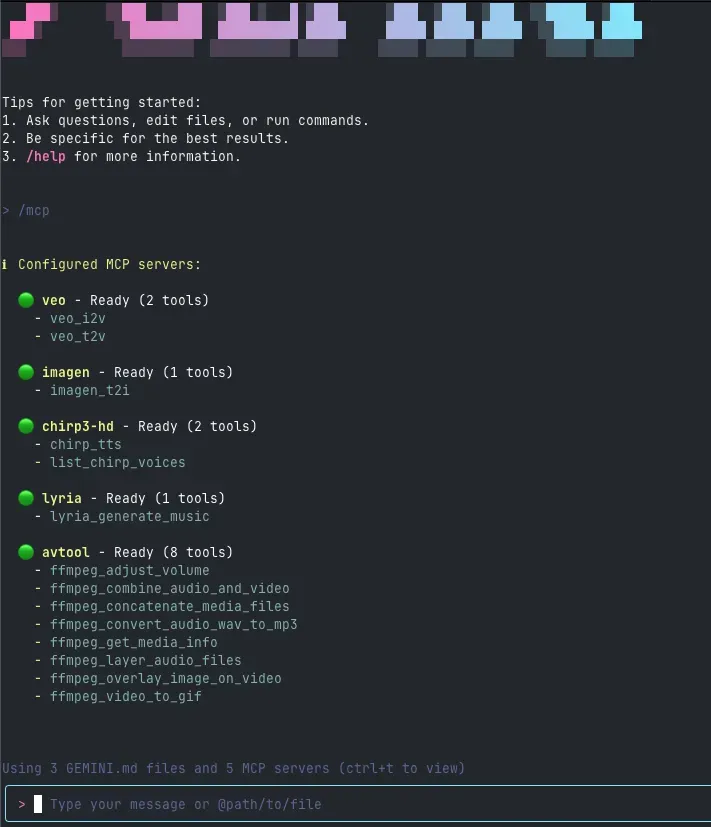
Now, when you start up gemini cli you should see the mpc servers listed when issuing the slash command, /mcp
Troubleshooting
Section titled “Troubleshooting”Error: spawn mcp-*-go ENOENT
Section titled “Error: spawn mcp-*-go ENOENT”If you encounter errors like the following when starting Gemini CLI:
Error connecting to MCP server 'veo': failed to start or connect to MCP server 'veo' {"command":"mcp-veo-go","trust":true};Error: spawn mcp-veo-go ENOENTError connecting to MCP server 'imagen': failed to start or connect to MCP server 'imagen' {"command":"mcp-imagen-go","trust":true};Error: spawn mcp-imagen-go ENOENTError connecting to MCP server 'chirp3-hd': failed to start or connect to MCP server 'chirp3-hd' {"command":"mcp-chirp3-go","trust":true};Error: spawn mcp-chirp3-go ENOENTError connecting to MCP server 'lyria': failed to start or connect to MCP server 'lyria' {"command":"mcp-lyria-go","trust":true};Error: spawn mcp-lyria-go ENOENTError connecting to MCP server 'avtool': failed to start or connect to MCP server 'avtool' {"command":"mcp-avtool-go","trust":true};Error: spawn mcp-avtool-go ENOENTError connecting to MCP server 'gemini': failed to start or connect to MCP server 'gemini' {"command":"mcp-gemini-go","trust":true};Error: spawn mcp-gemini-go ENOENTCause: This error indicates that the Genmedia MCP server binaries (installed via Go) are not in your terminal’s PATH. The Gemini CLI cannot locate the commands like mcp-veo-go, mcp-imagen-go, etc.
Solution: Add the Go binary directory to your PATH.
Temporary Fix (Current Terminal Session Only)
Section titled “Temporary Fix (Current Terminal Session Only)”Run the following command in your terminal:
export PATH=$PATH:~/go/binThis adds ~/go/bin (the default location for Go-installed binaries) to your PATH for the current session only.
Permanent Fix (Recommended)
Section titled “Permanent Fix (Recommended)”To ensure the Go binaries are always available, add the export command to your shell’s configuration file:
For Bash (most common):
echo 'export PATH=$PATH:~/go/bin' >> ~/.bashrcsource ~/.bashrcFor Zsh (macOS default since Catalina):
echo 'export PATH=$PATH:~/go/bin' >> ~/.zshrcsource ~/.zshrcFor Fish:
fish_add_path ~/go/binNote: If you have a custom GOBIN or GOPATH set, adjust the path accordingly. You can check your Go environment with:
go env GOBINgo env GOPATHIf GOBIN is set, use that path. Otherwise, use $GOPATH/bin or the default ~/go/bin.
Verify the Fix
Section titled “Verify the Fix”After updating your PATH, verify that the MCP servers are accessible:
which mcp-veo-gowhich mcp-imagen-gowhich mcp-chirp3-gowhich mcp-gemini-goEach command should return a path like /home/username/go/bin/mcp-veo-go. If they do, your PATH is configured correctly.
You can also test individual servers directly:
mcp-imagen-go --helpThis should display the help message for the Imagen MCP server without errors.