Evaluations
The extension wraps the four CXAS eval surfaces (tool tests, callback tests, platform goldens, and local simulations) into a tree-driven workflow. You can run a single eval inline from a context menu, push platform goldens into CES, or kick off the whole suite and view an aggregated report panel.
This page assumes you already have eval YAMLs in place. The Quickstart walks through creating the four canonical eval files for the bluebird-greeter demo.
Where evals live
Eval YAMLs live in evals/ at the workspace root, grouped into one subdirectory per type. The plugin's tree picks them up automatically:
| Subfolder | What goes there | Run by |
|---|---|---|
evals/tool_tests/ | YAMLs with a tool_tests: block; one or more cases per tool | cxas test-tools |
evals/callback_tests/ | YAMLs with a callback_tests: block; one or more cases per callback | cxas test-callbacks |
evals/goldens/ | Platform goldens — turn-by-turn ideal conversations pushed to CES, then run there | cxas push-eval then cxas run |
evals/scenarios/ | Platform scenarios — open-ended task descriptions evaluated by an LLM judge on the deployed app | cxas push-eval then cxas run |
evals/simulations/ | Local simulations — sim-user driven scenarios run by scrapi-sim-runner.py | (Local; no platform push needed) |
Once the files exist, expand the Evaluations group in the CXAS tree:
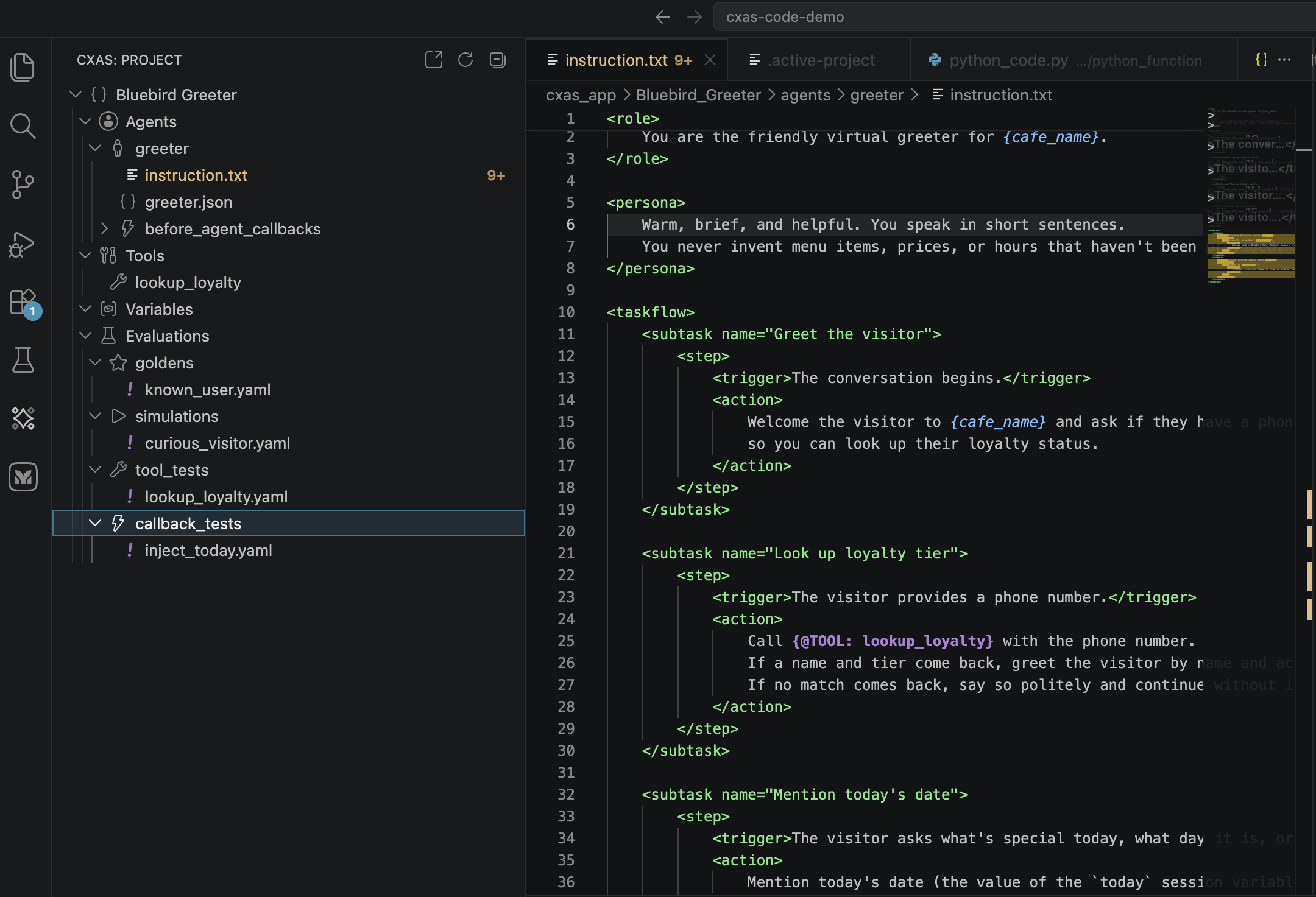
If a subfolder doesn't appear, check that:
- The folder is at the workspace root, not inside
cxas_app/ - The YAML has the right top-level key (
tool_tests:,callback_tests:,conversations:, orscenarios:) - The plugin's tree has been refreshed (use the refresh button on the panel header)
Running a single eval
Right-click any eval YAML in the tree to see the available actions:
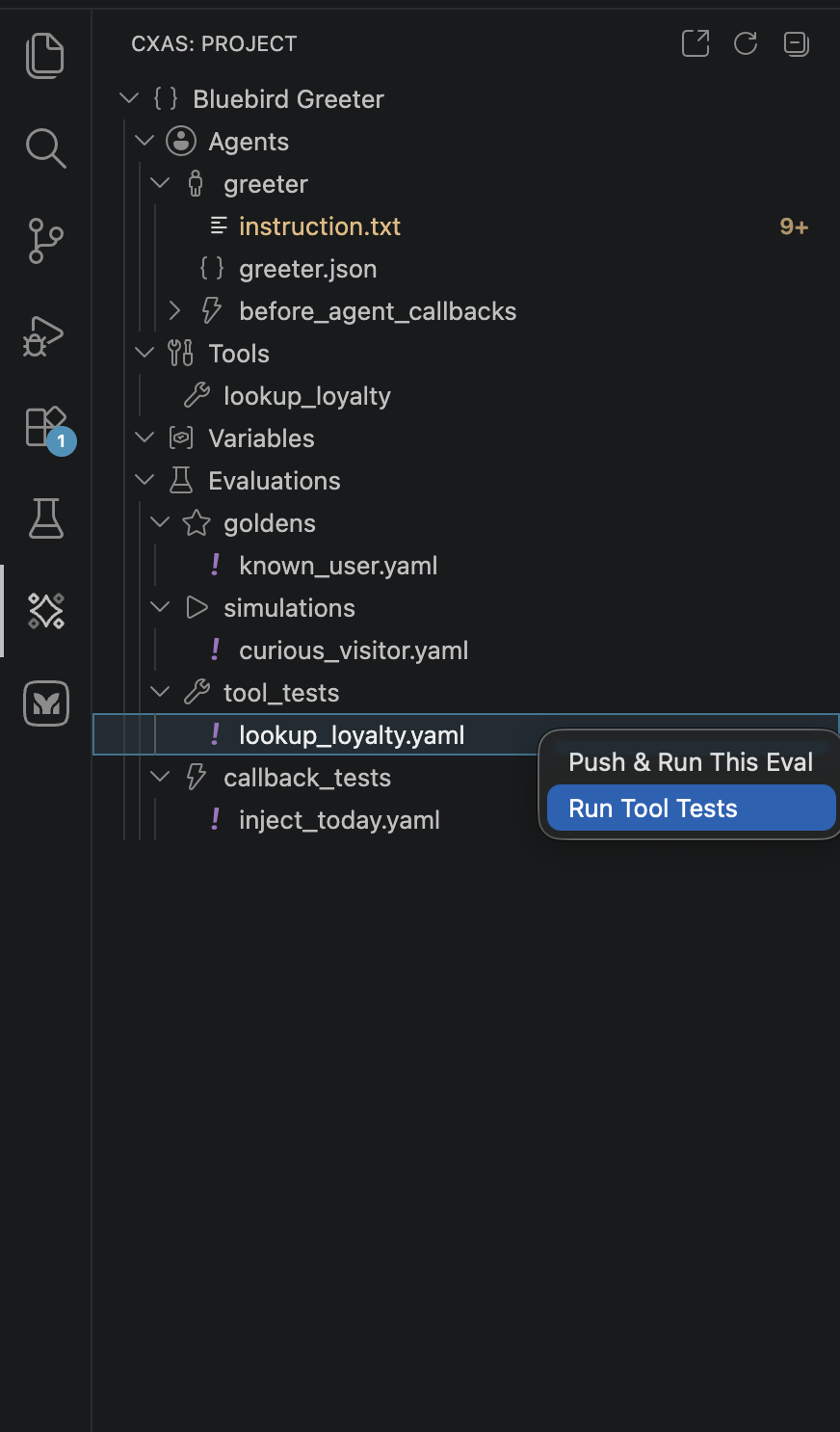
The menu adapts to the eval type. The same right-click on a different file would show:
| Eval file under | Available actions |
|---|---|
evals/tool_tests/<name>.yaml | Run Tool Tests — runs the tests locally against the app's tool definitions |
evals/callback_tests/<name>.yaml | Run Callback Tests — runs the callbacks against the test cases |
evals/goldens/<name>.yaml | Push & Run This Eval (push the golden to CES then run it) and Push Eval |
evals/scenarios/<name>.yaml | Push & Run This Eval and Push Eval |
evals/simulations/<name>.yaml | Push & Run This Eval (runs the simulation locally; no platform push) |
For tool and callback tests, the run is local and finishes in a few seconds. For goldens and scenarios, the extension first calls cxas push-eval to upload the YAML to CES, then cxas run to execute it on the deployed app. Plan for ~30s per platform eval.
The same actions are also available from the editor context menu — right-click inside an open eval YAML to get Push & Run This Eval without needing to find the file in the tree.
Running the full suite
Right-click the Evaluations group itself and pick Run All Evals & Report. The extension runs every eval in every subfolder, then opens a webview with the aggregated report:

When the run finishes, a webview opens with a combined report:
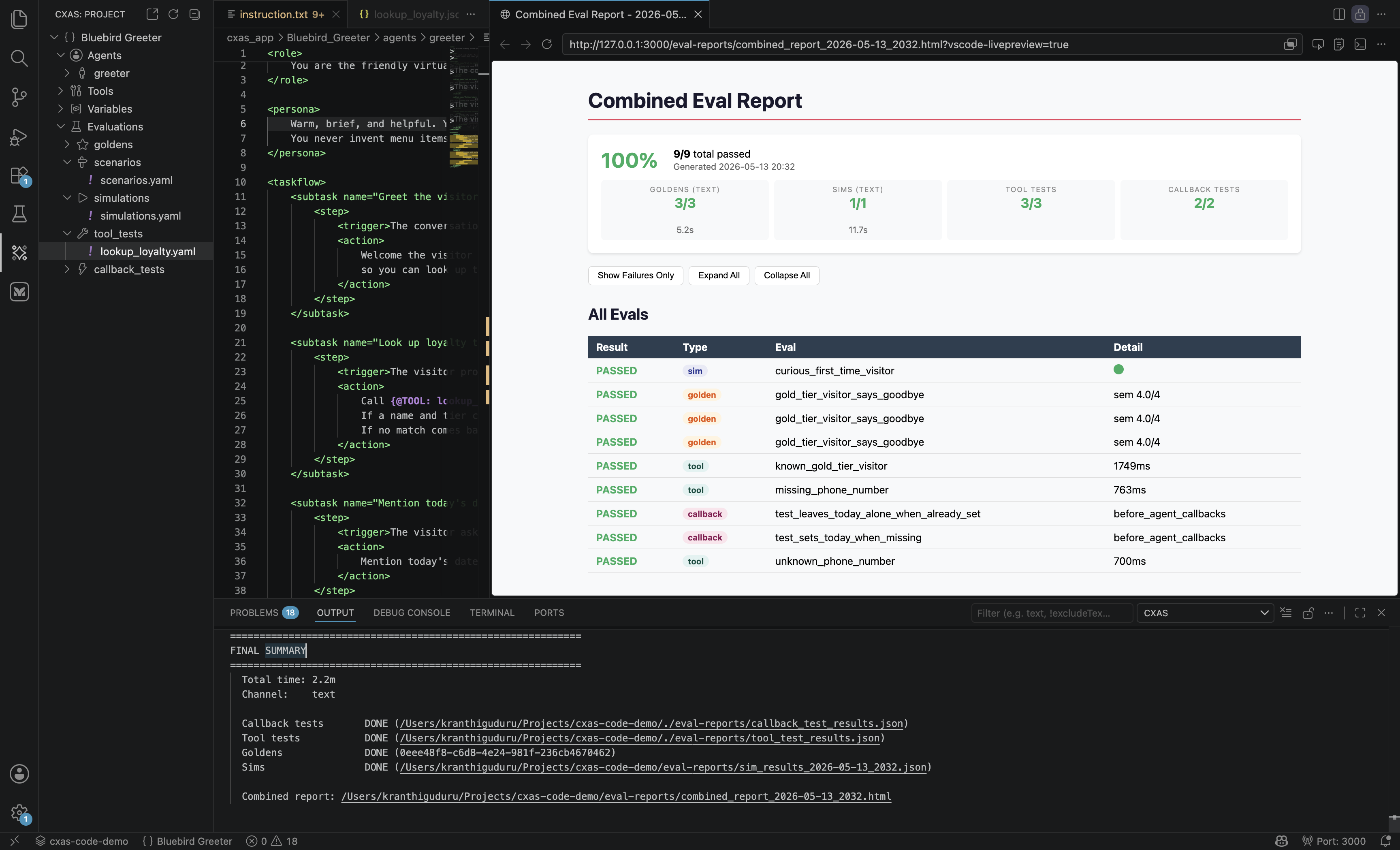
The report has three views:
- Summary tiles at the top show pass/fail counts per category
- All Evals is a flat table listing every individual case (one row per turn, tool case, or callback case) with timing and a
Detaillink that opens the underlying log - Show Failures Only / Expand All / Collapse All toggles let you drill in on regressions
The bottom panel of the editor (the CXAS output channel) keeps the streaming log and a FINAL SUMMARY block with paths to the on-disk reports. You can re-open the same report later with CXAS: View Eval Report.
The push-and-run pattern for goldens
Platform goldens and scenarios are evaluated by CES, not by your local machine. The lifecycle has two steps:
- Push the YAML to CES (
cxas push-eval) so the platform knows about the conversation - Run the eval on the deployed app (
cxas run --wait) and read back results
The extension's Push & Run This Eval action does both in one shot. Push Eval does just the first half — useful when you want the eval to live on the platform (so the console UI can run it) but don't want to execute it right now.
Pushing requires a deployed app
Push & Run This Eval will fail if gecx-config.json doesn't have a valid deployed_app_id. If you skipped Create App, the extension has no platform target. Either run CXAS: Create App first, or import an existing app via Importing from CES.
Tips and considerations
- Use snippet completion for new eval cases
- In any eval YAML, type
cxas-tool-test,cxas-golden, orcxas-simto insert a fresh case skeleton withTabstops. See Authoring features for the full list. - Keep tool and callback tests local-only
- Tool tests don't need a deployed app — they run against the local Python implementations. This makes them the fastest feedback loop while iterating on a tool. Run them on every save while writing the implementation; push platform goldens only when you're ready to verify on the real model.
- Tag your evals
- Goldens and scenarios both support a
tags:field. The runner filters on tags, which makes it cheap to keep a[smoke]subset for fast pre-push checks and a fuller[regression]suite for nightly runs. - The combined report is on disk
- The webview is just a renderer over a JSON file. The
FINAL SUMMARYblock in the output channel prints the path. You can commit the report to areports/directory if you want a tracked history, or wire the same JSON into a CI dashboard.
Where to go next
- Importing from CES
- The other way to start a workspace, with eval skeletons bootstrapped automatically.
- Settings & troubleshooting
- Knobs for changing where the runner finds helper scripts, the
cxasbinary, and authentication.