Authentication
Every SCRAPI API call and CLI command needs to talk to Google Cloud on your behalf, which means it needs credentials. The good news is that SCRAPI is designed to find the right credentials automatically in most situations — you just need to make sure the right credentials exist in your environment.
This page explains exactly how SCRAPI resolves credentials, and walks through the setup for every supported method.
How SCRAPI resolves credentials
When you instantiate any SCRAPI class (like Apps(...) or Agents(...)), it looks for credentials in this order:
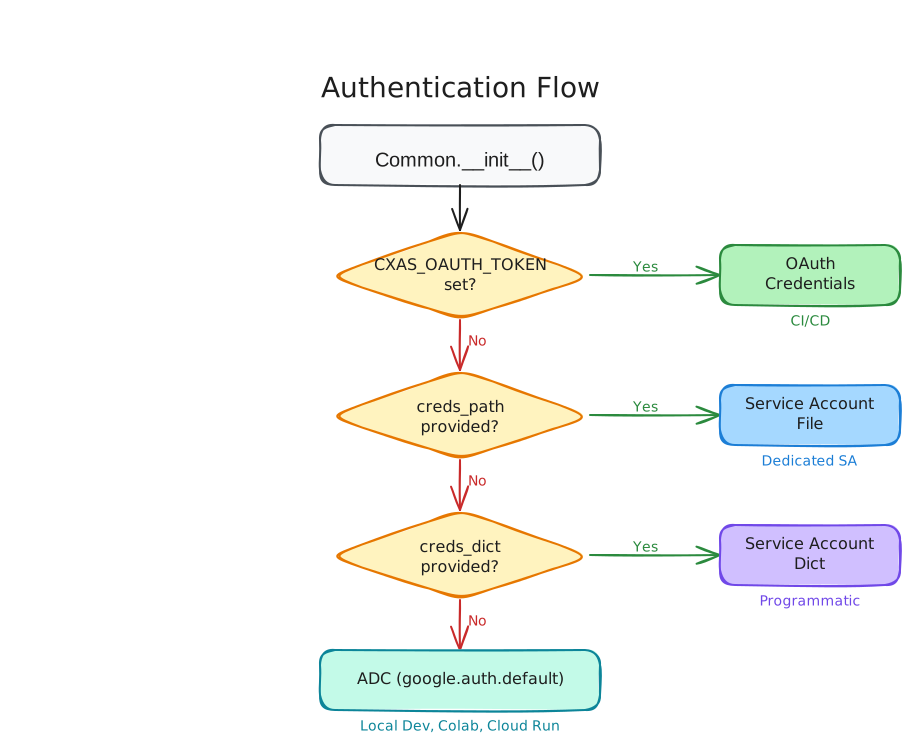
In practice, for local development you'll almost always use Application Default Credentials (the last option). For automation and production, you'll typically use a service account or the CXAS_OAUTH_TOKEN environment variable.
Required IAM roles
Whichever auth method you use, the Google Cloud principal (user account or service account) doing the authenticating needs the right IAM permissions on your project. For most SCRAPI operations you'll need one of:
| Role | Use case |
|---|---|
roles/ces.admin | Full access — create, read, update, delete all resources |
roles/ces.viewer | Read-only access — useful for CI pipelines that only evaluate |
roles/ces.agentEditor | Read and write access to agent structures (instructions, tools, etc.) |
Grant roles in the IAM console or with:
gcloud projects add-iam-policy-binding YOUR_PROJECT_ID \
  --member="user:you@example.com" \
  --role="roles/ces.admin"
Local development with gcloud CLI
This is the recommended auth method for anyone developing locally. The gcloud CLI stores your credentials on disk and SCRAPI (via Google's ADC library) picks them up automatically — no extra code required.
Setup:
# Step 1: Install gcloud CLI (if you haven't already)
# https://cloud.google.com/sdk/docs/install

# Step 2: Log in with your Google account
gcloud auth login

# Step 3: Set Application Default Credentials
gcloud auth application-default login

# Step 4: Set your project
gcloud config set project YOUR_PROJECT_ID

# Optional: Set quota project (sometimes required)
gcloud auth application-default set-quota-project YOUR_PROJECT_ID
After running these commands, any SCRAPI code you run will automatically pick up your credentials:
from cxas_scrapi import Apps

# No credentials argument needed — ADC takes care of it
client = Apps(project_id="my-project", location="us")
apps = client.list_apps()
Google Colab
If you're using SCRAPI in a Google Colab notebook, you can authenticate interactively using the gcloud CLI commands that Colab makes available:
project_id = "YOUR_GCP_PROJECT_ID"

# Launch an interactive browser-based auth flow
!gcloud auth application-default login --no-launch-browser

# Set the quota project
!gcloud auth application-default set-quota-project {project_id}
Colab will show you a URL — open it in your browser, complete the sign-in flow, and paste the authorization code back into the notebook. After that, SCRAPI will automatically use your credentials for the rest of the session:
from cxas_scrapi import Apps

client = Apps(project_id=project_id, location="us")
apps_map = client.get_apps_map()
print(apps_map)
No service account keys needed in Colab
The interactive ADC flow is safer than embedding service account keys in a notebook. Your credentials stay in the runtime environment and aren't stored in the notebook file itself.
Cloud Functions and Cloud Run
When your code is running inside Cloud Functions or Cloud Run, SCRAPI picks up the service account credentials attached to the function or service automatically — no configuration needed on your part.
Setup:
- Add
cxas-scrapito yourrequirements.txt(orpyproject.toml). - Make sure the Cloud Function or Cloud Run service account has the appropriate IAM role on your project (see Required IAM roles above).
Your function code looks exactly like local code:
from cxas_scrapi import Agents

def my_function(request):
    # Credentials are picked up from the Cloud Run / Cloud Functions environment
    app_name = "projects/my-project/locations/global/apps/my-app-id"
    client = Agents(app_name=app_name)
    agents = client.get_agents_map()
    return str(agents)
Which service account is used?
Cloud Functions and Cloud Run each run with a default compute service account, or a custom service account you specify at deploy time. SCRAPI uses whichever service account the runtime environment provides.
Service account JSON key
If you prefer to provide credentials explicitly — for example, when running in an environment that doesn't have ambient credentials — you can point SCRAPI at a service account JSON key file.
from cxas_scrapi import Tools

app_name = "projects/my-project/locations/global/apps/my-app-id"

client = Tools(
    app_name=app_name,
    creds_path="/path/to/service-account-key.json",
)

tools_map = client.get_tools_map()
You can also provide credentials as a dictionary (useful when the key is stored in Secret Manager or another secrets store):
import json
from cxas_scrapi import Tools

# Load the service account key from wherever you store secrets
creds_dict = json.loads(my_secret_value)

client = Tools(
    app_name="projects/my-project/locations/global/apps/my-app-id",
    creds_dict=creds_dict,
)
Protect your service account keys
Never commit service account JSON keys to version control. Use Secret Manager, environment variables, or a secrets management tool to store them securely.
OAuth token via environment variable
For CI/CD environments and other automation contexts where you have a short-lived OAuth token, you can set the CXAS_OAUTH_TOKEN environment variable and SCRAPI will use it automatically:
from cxas_scrapi import Apps

# SCRAPI will use the token from the environment variable
client = Apps(project_id="my-project", location="us")
This is particularly useful in GitHub Actions or other CI systems where you generate a token at the start of a workflow and use it across multiple steps:
- name: Generate access token
  run: echo "CXAS_OAUTH_TOKEN=$(gcloud auth print-access-token)" >> $GITHUB_ENV

- name: Run CXAS lint
  run: cxas lint
Troubleshooting
google.auth.exceptions.DefaultCredentialsError- SCRAPI couldn't find any credentials. Make sure you've run
gcloud auth application-default login, or that you're providing credentials explicitly. Check that theCXAS_OAUTH_TOKENenv var is set if you intend to use it. 403 Permission Deniedorgoogle.api_core.exceptions.PermissionDenied- Your credentials are valid but don't have the required IAM permissions on the target project. Check the Required IAM roles section above, or see the detailed IAM Permissions Guide for fine-grained permissions, and make sure the right role is granted.
google.auth.exceptions.TransportError- SCRAPI can't reach the Google Cloud API — usually a network issue. Check your internet connection, proxy settings, and firewall rules.
- Token expired errors
- ADC tokens expire after about an hour. If you're running a long job and see expiration errors, re-run
gcloud auth application-default loginand try again. For long-running automation, use a service account instead. gcloud: command not found- The gcloud CLI isn't installed or isn't on your PATH. Follow the installation guide and make sure to run the post-install steps that update your PATH.
What's next?
Now that you're authenticated, you're ready to start using SCRAPI: